
MSIX Craft
The visual way to build modern Windows installers. Turn your project staging folder into a clean MSIX package with automatic manifest generation, logo validation, and local code signing for testing or Store submission.
From project staging folder to a proper MSIX package.
MSIX is the modern Windows installer format: one file, clean installs, reliable updates, and complete removal. But the official tools live on the command line. MSIX Craft gives you a clean, visual workspace for the entire workflow.
Point it at a project staging folder a folder you prepare with only the files your program needs and MSIX Craft handles the rest. It scans for executables, generates the AppxManifest.xml from your form entries, validates your logo images against the exact sizes Windows expects, and builds the package with the official SDK tools.
When the build finishes, you can sign the package with a self signed certificate for local testing. That signature is trusted only on the computer where you import the .cer file into Trusted People. For distribution to other computers, the package must be signed by the Microsoft Store or by a certificate authority that Windows already trusts. MSIX Craft prepares the package correctly so that submission to the Store is smooth.
Three steps to a finished package
No memorizing PowerShell commands. No guessing at manifest schemas.
Select your project staging folder
Choose the clean folder with your executable, DLLs, and Assets. MSIX Craft finds the .exe files and prepares the package root automatically.
Configure and validate
Fill in the package name, publisher, and version. MSIX Craft checks your three logo images against the exact sizes and generates the manifest for you.
Build and sign
Click Build. The official SDK tools run in the background. The result is an .msix file you can install locally for testing or submit to the Microsoft Store.
Key Features
- Visual workflow: A clean interface for selecting your staging folder, filling in package details, and building with a single action.
- Automatic manifest generation: MSIX Craft writes the
AppxManifest.xmlfrom your form entries, saving you from schema errors. - Logo validation: It checks your three PNG images against the exact sizes Windows requires, stopping the build early if something is wrong.
- Built in code signing: Create a self signed certificate for testing or use your existing
.pfxfor local distribution. - SDK detection: The app finds the Windows SDK tools automatically and shows which version it is using.
- Clear logging: Every step is written to a log, including the raw output of
makeappxandsigntool. - Staging folder awareness: It skips source code, .pdb files, build intermediates, and certificates, keeping your package clean.
- Local testing focus: Built for developers who want to package, sign, and test their apps on their own machine before Store submission.
Frequently Asked Questions
What is a project staging folder in MSIX Craft?
A project staging folder is a clean folder you prepare that contains only the files your program needs to run: the executable, required DLLs, data files, and an Assets folder with logo images. MSIX Craft packs exactly this folder, skipping source code, .pdb files, and build intermediates. This keeps the package small and prevents leaking your source code.
Do I need the Windows SDK to use MSIX Craft?
Yes. MSIX Craft uses the official Windows SDK tools makeappx.exe and signtool.exe. The System box inside the app shows which SDK version was found. If it is missing, install the Windows 11 SDK via the Visual Studio Installer under Individual components, then restart MSIX Craft.
What logo images does MSIX Craft require?
The generated manifest expects three PNG images in the Assets folder of the package root: StoreLogo.png (50x50), Square44x44Logo.png (44x44), and Square150x150Logo.png (150x150). A wrong size stops the build. A missing image is replaced by a placeholder, and the log shows a warning.
How does signing work in MSIX Craft?
Windows installs only signed MSIX packages. MSIX Craft offers three options: Unsigned (build only, sign later with your own tools), Create a new self signed certificate (valid for three years, saved as .pfx and .cer, and added to your certificate store), or Existing .pfx (choose your file and enter the password). A self signed certificate is trusted only on the computer where you manually import the .cer file into Trusted People. For distribution to other computers, the package must be signed by the Microsoft Store or by a certificate authority that Windows already trusts. The Publisher field must exactly match the certificate subject, or signing fails.
Can I submit MSIX Craft packages to the Microsoft Store?
Yes. MSIX Craft produces packages in the correct format for Store submission. When you submit a package, the Microsoft Store signs it with its own certificate, and that is what allows installation on any Windows computer. MSIX Craft itself does not sign for distribution; it builds the package and can sign it locally for testing.
What happens if my app fails to start after installation?
The most common cause is a missing file in the project staging folder, such as Visual C++ runtime DLLs. Compare the files inside the package (using 7 Zip or makeappx unpack) with the folder from which your program runs successfully. Copy the missing files into the staging folder and build again.
Gallery
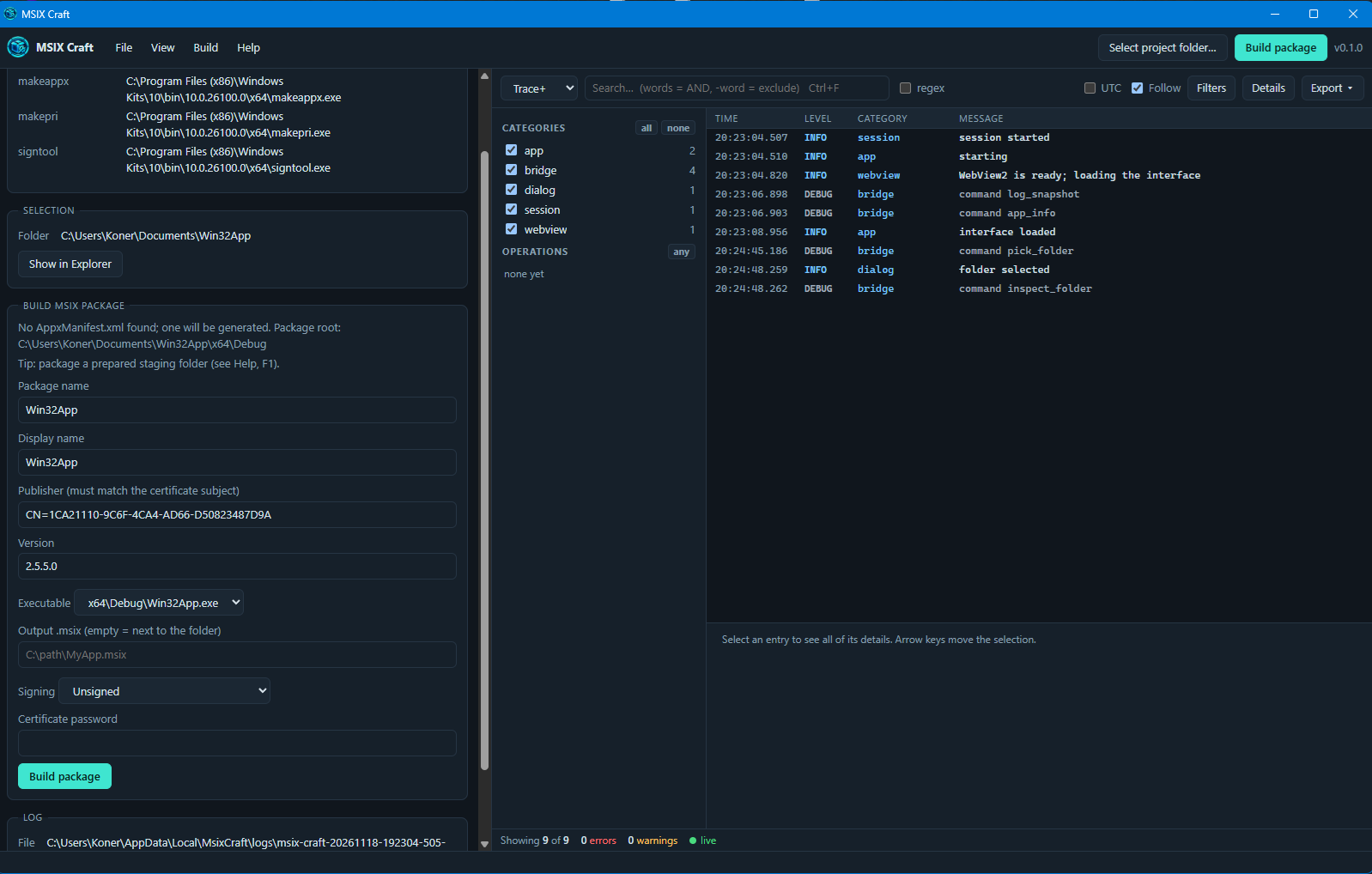
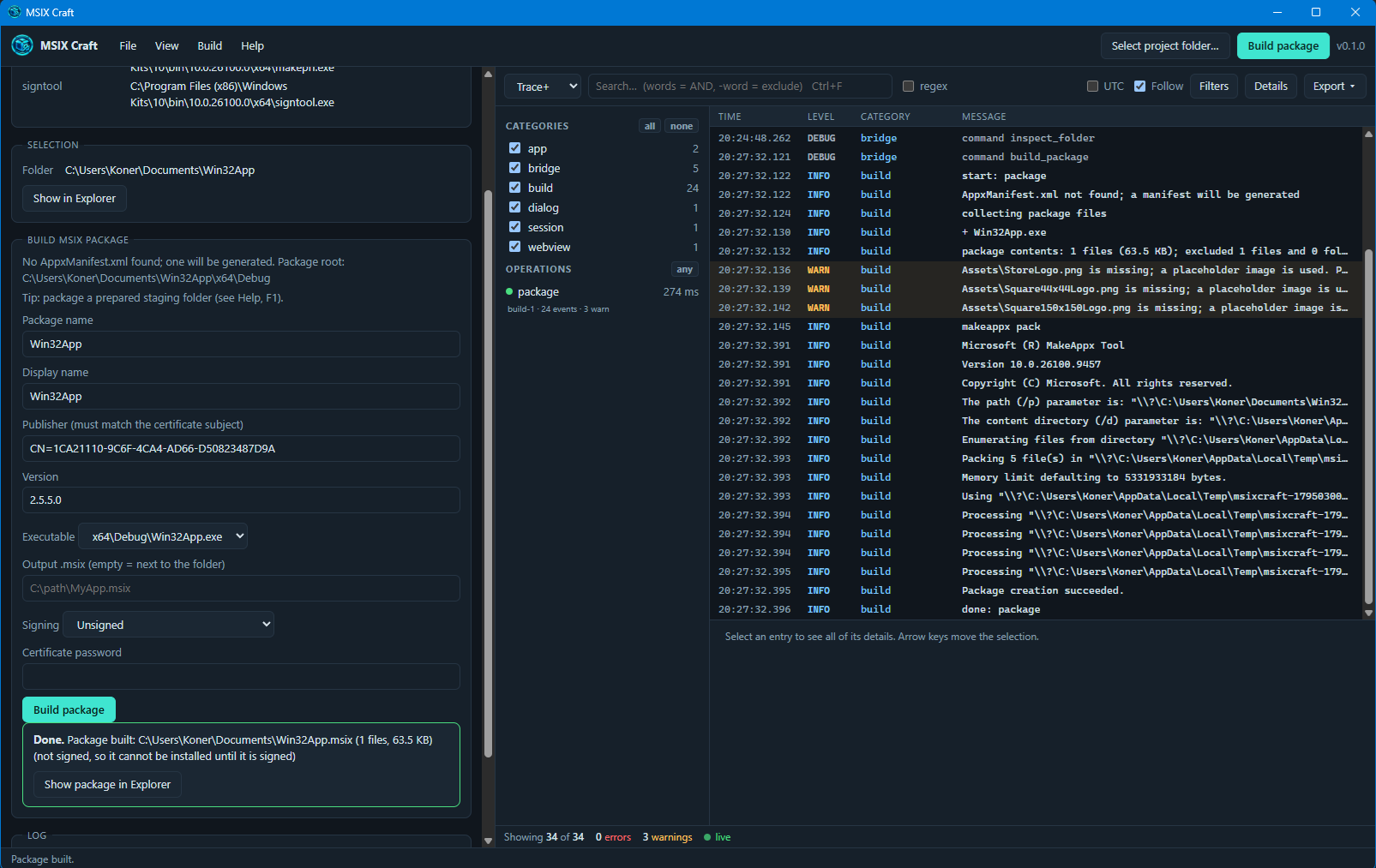
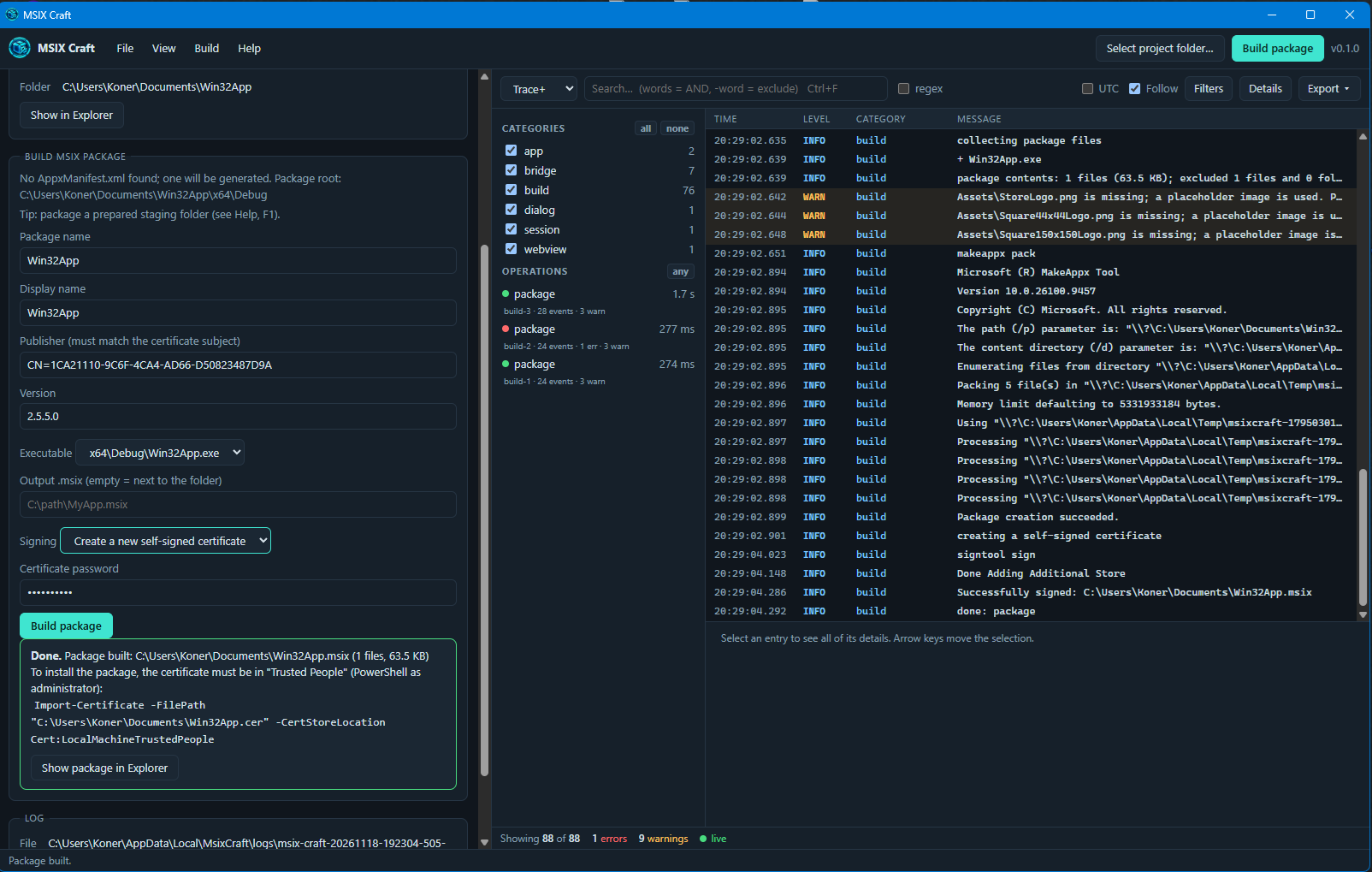
Take a look at MSIX Craft in action.
Last updated: November 2026