
MiniAmp
Simple, fast, transparent local audio player. Play your own MP3 files privately, with no uploads, no streaming, and no ads.
Your music, your privacy
MiniAmp was created out of frustration. I wanted a simple way to play my own songs without unnecessary complexity or bloat. Most audio players today either have far more features than you would ever need, or they require an account, stream your data, or show ads.
MiniAmp is different. It is a 100% local audio player. Your files never leave your device. There are no uploads to a server, no tracking, and no ads. Just your music, playing exactly as it should.
How MiniAmp works
Three simple steps, no account, no setup.
Install or launch
Open the web app or install MiniAmp from the Microsoft Store.
Add your music
Select your own MP3 files from your device. They stay on your device.
Press play
Organize playlists and enjoy your music offline, with no ads.
Key Features
- 100% Private: Files are stored locally in your browser's database. Nothing is uploaded to a server.
- Cross-Platform: Install it on Windows, macOS, Linux, Android, and iOS. Anywhere a modern browser works, MiniAmp works.
- Offline First: Works completely offline once installed. No internet connection required to play your music.
- Playlists: Create multiple playlists and organize your local library.
- Native Feel: Installs as a standalone app with its own window, icon in the Start menu / home screen, and no browser address bar.
Install MiniAmp Anywhere
MiniAmp is a Progressive Web App (PWA). This means you don't need an app store to install it. You can install it directly from your browser to your device's home screen or desktop, regardless of the operating system you use.
* For Windows users, MiniAmp is also available on the Microsoft Store.
Frequently Asked Questions
Is MiniAmp really free?
Yes. MiniAmp is completely free to use, both in your browser and as a Windows app. There are no ads, no subscriptions, and no hidden fees.
Does MiniAmp upload my music files to a server?
No. MiniAmp is a 100% local audio player. Your files are stored in your browser's local database and never leave your device. There are no uploads to any server, no tracking, and no analytics that send your data anywhere.
Can I use MiniAmp offline?
Yes. Once you install MiniAmp as a Progressive Web App (PWA) or from the Microsoft Store, it works completely offline. No internet connection is required to play your music.
Does MiniAmp work on iPhone and iPad?
Yes. Open MiniAmp in Safari on iOS, tap the Share button, and select "Add to Home Screen". It will install as a standalone app on your iPhone or iPad.
What audio formats does MiniAmp support?
MiniAmp plays MP3 files and other audio formats supported by your browser's HTML5 audio engine, including WAV, OGG, and M4A. Support may vary slightly depending on your browser and operating system.
How do I install MiniAmp on Windows?
You can install MiniAmp on Windows in two ways: download it from the Microsoft Store, or open miniamp.koner.app in Chrome or Edge and click the "Install" icon in the address bar. Both methods give you a standalone app with its own window and Start menu icon.
Gallery
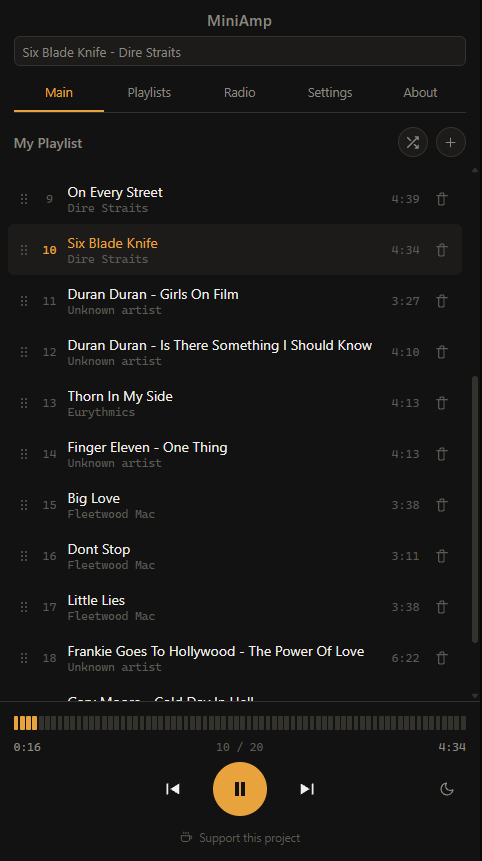
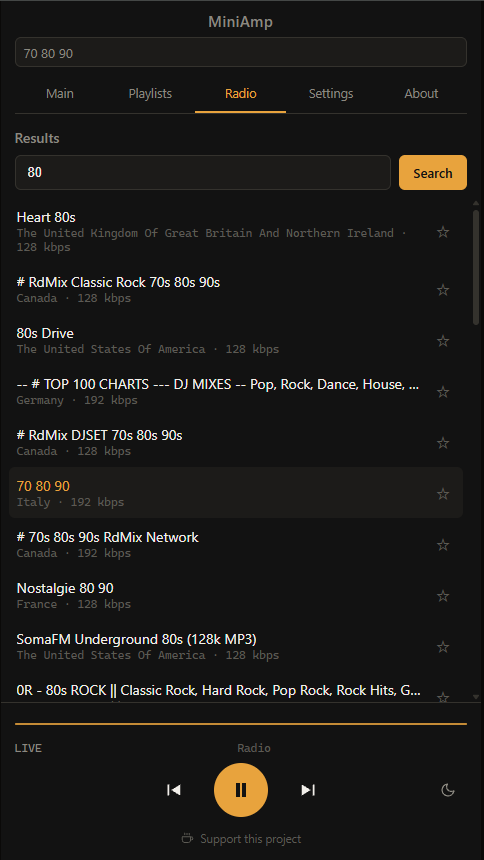
Take a look at MiniAmp in action.
Last updated: October 2026